


Areas We Cover
Categories

FROM IDEA TO FINAL CUT: What a Unified Video AI Generator Actually Delivers in Practice
by Jim Allen | June 17, 2026
in Extras, Technology
There is a moment in every video production workflow where the creative vision outruns the available resources. You have the footage, you have the concept, but making the two meet requires either a team of specialists or a patchwork of AI tools that do not talk to each other. That gap between vision and execution is where most video AI platforms position themselves, but few actually bridge it in a way that feels practical rather than promotional. I have been testing Video to video ai against that specific problem: can a single generator handle the range of edits that a typical production requires, from character replacement to upscaling to duration extension, without forcing me to relearn the interface at every step? The answer, as it turns out, is more nuanced than a simple yes or no. The platform delivers on its promise of a unified workflow, but the real value lies in how it handles the details that other tools overlook—and where it still leaves room for improvement.

The Editing Landscape:
Why Unified Workflows Matter Now
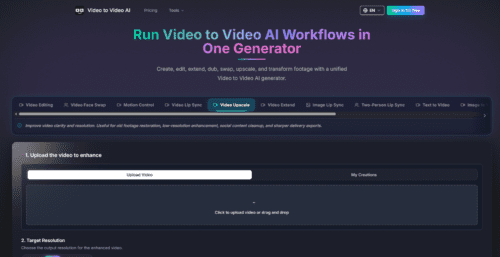
The last two years have seen an explosion of AI video tools, each specialising in a narrow slice of the editing process. One tool swaps faces, another upscales resolution, a third extends duration, and a fourth handles lip sync. The cumulative effect is a fragmented ecosystem where creators spend more time managing outputs than generating them. The platform I tested takes a different approach. It consolidates seven distinct workflows—character replacement, clothing swap, face swap, lip sync, motion control, video upscaler, and video extend—into a single generator with a consistent four-step rhythm. That consistency is the platform’s core argument: that the efficiency gain from a unified interface outweighs the specialised depth that single-purpose tools can offer.
Character Replacement:
When Motion Is the Message
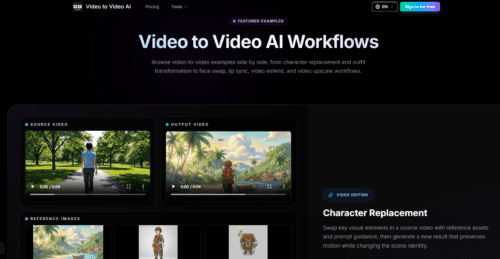
Character replacement is the workflow that most video-to-video tools claim to do well, but few actually execute with motion integrity. The platform addresses this by treating the video as the motion carrier and the reference assets as the visual identity layer. You upload a clip, provide frontal, side, and top reference images of the new character, and write a prompt that specifies what changes and what stays. The output preserves the original camera movement and action timing while applying the new visual identity. In my testing, the multi-angle reference support made a tangible difference in consistency, particularly when the subject turned or moved through the frame. The result is not always flawless on the first pass—complex scenes with rapid motion may require a second generation—but for ad variations and virtual production tests, the workflow delivers a usable result faster than traditional methods.
Clothing Swap:
Wardrobe Changes Without Reshooting
Changing what a talent wears in an existing shot typically involves either a costly reshoot or painstaking rotoscoping work. The clothing swap workflow offers an alternative. It uses front and back reference images to capture the garment’s silhouette and fabric behaviour, then applies the new look while preserving body motion, framing, and performance. I tested this with a walking shot where the original outfit was a dark jacket and the reference was a lighter, patterned coat. The output maintained the walking pace and arm swing, and the new garment wrapped around the body in a way that felt plausible rather than warped. The fidelity is not perfect every time—lighting mismatches between the reference and the video can create subtle tonal shifts—but for fashion previews and concept testing, it saves days of production work.
Face Swap and Lip Sync:
Performance Transfer That Respects Timing
Face swap and lip sync are often treated as gimmicks, but they have serious applications in dubbing, localisation, and character previews. The platform handles both through a similar reference-based mechanism. For face swap, you provide a face image and identify the target face in the video to be replaced. The original performance, camera motion, and shot timing remain intact, which is the critical difference between a usable tool and a novelty filter. For lip sync, you provide the new audio track, and the system aligns mouth movements to the new speech while keeping pacing, expression, and delivery natural. In my tests, the sync accuracy held up well for dialogue-length clips, though longer monologues with rapid speech required more careful audio preparation. The result is not always photorealistic in extreme lighting conditions, but for character previews and concept ads, it provides a clear directional view without the cost of a full VFX pipeline.

Motion Control:
Where Fine-Grained Expression Transfer Matters
Most video AI tools handle facial expressions reasonably well but lose coherence when the movement involves full-body actions or subtle finger gestures. The motion control workflow is designed to address that gap. It synchronises motion transfer across facial expression details, full-body movement, and even fine finger actions, while keeping the generated performance precise and believable. I ran a test with a clip that included a hand gesture—pointing and then waving—and the output preserved the finger articulation better than I expected. The platform does not claim to be a full motion-capture replacement, and complex choreography may still show artefacts. But for expressive video generation where fine-grained control matters, this workflow adds a layer of nuance that many competitors skip.
Video Upscaler and Video Extend:
Beyond the Obvious Enhancements
The upscaler and extended workflows are often treated as afterthoughts in video AI platforms, but here they receive the same workflow treatment as the more glamorous features. The video upscaler does not simply increase resolution; it also recovers and enriches visual details, making older or compressed footage look clearer and more informative. The video extended workflow offers flexible control over added seconds, making it easy to grow a clip and continuously push the scene length further when needed. Neither workflow is revolutionary on its own, but their inclusion in the same generator means you can upscale a clip and then extend it without leaving the environment or re-uploading assets.
The Four-Step Rhythm:
How the Generator Actually Operates
Understanding what a tool can do is only half the picture. The other half is how you get there—the steps, the friction points, and the moments where the interface either accelerates your work or gets in the way. The platform uses a generator-based model where you switch between workflows depending on your task. The recommended flow for video editing tasks follows a clear four-step pattern.
Step 1: Upload the Video
Starting with the Clip You Want to Transform
Every workflow begins with the video—the clip you want to transform while keeping its camera and motion structure. The upload process is straightforward, and the platform accepts standard video formats without requiring pre-processing. The quality of the clip directly influences the final result, so starting with clean footage makes a visible difference.
Step 2: Add Reference Assets
Defining the New Visual Direction
Once the video is uploaded, you attach supporting images or element packs that define the new visual target. For character replacement, this might be frontal, side, and top views of the new character. For clothing swap, front and back references of the new garment. The platform does not limit you to a single reference; multiple angles improve consistency, especially when the subject moves through the frame.
Step 3: Write the Edit Prompt
Guiding What Changes and What Stays
The prompt is where you translate your creative intent into text. You reference the uploaded assets and explain what should change or remain. This is the most skill-dependent part of the workflow. Vague prompts produce vague results; specific prompts that reference the reference images directly yield tighter outputs. The platform does not offer a prompt builder or template library, so you are effectively writing your own instruction set each time.
Step 4: Generate the New Version
Rendering and Downloading the Result
After the prompt is set, you trigger the generation and wait for the rendered video. The platform does not display a real-time progress bar with granular detail, but the turnaround time felt reasonable for clips under ten seconds. Once the output is ready, you can download the version that best fits your creative brief. The option to regenerate with adjusted prompts is available, which is useful when the first pass misses a subtle detail.
Pricing and Credits:
What You Are Actually Paying For
The platform operates on a subscription-based credit model. Credits are issued in full at once and refreshed annually. All paid plans include private generations and commercial usage rights. The Standard plan offers 16,000 credits at $39.99 per month with annual billing. The Professional plan offers 33,000 credits at $79.99 per month. The Ultra plan offers 66,000 credits at $159.99 per month. There is also a one-time credit option that never expires, ranging from 3,000 credits for $199 to 80,000 credits for $2,999. The subscription structure is designed for high-volume production, and the annual billing option saves 50% compared to monthly pricing.
A Practical Comparison:
Unified Workflow vs. The Alternatives
To put the platform’s approach in perspective, I compared it against the typical alternatives—single-purpose AI tools and traditional editing software with AI plugins. The differences are less about raw capability and more about how the workflow feels in practice.
| Aspect | This Platform | Single-Purpose AI Tools | Traditional Editors + Plugins |
| Entry Barrier | Moderate; prompt writing is the main skill | Low; each tool has a narrow, simple interface | High; requires editing knowledge and plugin management |
| Workflow Clarity | Unified generator with consistent steps | Fragmented; you switch apps for each task | Fragmented; plugins have different UIs and logic |
| Creative Control | High; references and prompts give fine-grained direction | Medium; limited to the tool’s specific function | Very high; but requires significant manual effort |
| Best-Fit Scenario | Rapid iteration, concept testing, and multi-task pipelines | One-off edits where depth is not critical | Final-mile polish where quality trumps speed |
| Result Consistency | Depends heavily on prompt and reference quality | Generally consistent within a narrow domain | Consistent but labour-intensive |
| Learning Investment | Medium; one logic across all workflows | Low per tool, but high cumulative across tools | High; steep learning curve for each plugin |
The table does not declare a winner; it simply maps where each approach fits. For creators who bounce between character swaps, lip sync, and upscaling in a single project, the unified workflow reduces context-switching overhead. For specialists who only ever need one function, a dedicated tool might feel lighter.
Realistic Limitations:
What the Platform Does Not Promise
No video AI tool is flawless, and this one is no exception. The platform is transparent about what it offers, but it does not over-promise on areas where the technology still has inherent constraints. In my testing, a few limitations stood out.
First, prompt quality is the single biggest variable. A well-crafted prompt with clear references produces strong results; a vague or contradictory prompt produces outputs that require multiple regenerations. The platform does not provide prompt engineering guidance within the interface, so new users may need to experiment before they find a reliable formula.
Second, complex scenes with rapid motion, occlusions, or extreme lighting may require more than one generation pass. The motion preservation is good, but it is not perfect. Fast-moving subjects with overlapping elements—like a crowd scene or a performer with flowing fabric—can introduce artefacts that a second pass with adjusted references can mitigate but not always eliminate.
Third, the result may vary across clips. The same prompt and references applied to two different videos can produce different levels of fidelity. This is not a flaw specific to this platform; it is a characteristic of generative models that are sensitive to input conditions.
Fourth, the platform does not offer free tiers or trial credits based on the published pricing structure. The entry point is a paid plan, which means you are committing financially before you can test extensively. For professional users who already have a budget for AI tools, this is less of a barrier; for casual experimenters, it is a consideration.
Who Benefits Most from This Unified Approach
After running through the workflows and living with the interface for several sessions, I have a clearer sense of where this tool fits in a creator’s toolkit. It is not a replacement for high-end VFX software, nor is it trying to be. Instead, it occupies a practical middle ground for professionals who need to move fast and test ideas without burning production budgets.
For advertising and marketing teams, the character replacement and clothing swap workflows enable rapid A/B testing of different visuals in the same video asset. You can generate multiple versions of a spot with different talent or wardrobe, show them to stakeholders, and decide on a direction without reshooting.
For localisation and dubbing studios, the lip sync workflow reduces the manual work of matching dialogue to new languages. The output is not broadcast-ready without some polish, but it provides a strong starting point that cuts weeks off the traditional pipeline.
For independent creators and small studios, the all-in-one nature of the platform means you do not need to subscribe to five different tools for five different tasks. The learning investment is concentrated on one logic, and the time saved on context-switching adds up over a project.
For VFX and concept artists, the face swap and motion control workflows offer a quick way to preview character designs in motion. Instead of building a full CG render for a pitch, you can use reference assets and a video to generate a proof-of-concept that communicates the idea clearly.

The Workflow Argument, Revisited
The video AI space is crowded with tools that look impressive in curated demos but fall apart in daily use. What sets this platform apart, in my experience, is not a single killer feature—it is the coherence of the workflow. The logic of uploading a video, adding references, writing a prompt, and generating a result applies across character replacement, clothing swap, face swap, lip sync, upscaling, and extension. That consistency reduces the cognitive load of switching between tasks and lets you focus on the creative direction rather than the interface.
The platform is not perfect, and it does not pretend to be. The quality of your output will depend on the quality of your inputs, and complex scenes may need extra passes. But for creators who value speed, iteration, and a unified environment, ai video to video offers a workflow that feels designed for the way production actually happens—in bursts, with revisions, and across multiple types of edits. It is a tool that respects your time while leaving room for your judgment, and that, in the current landscape of AI video tools, is rarer than it should be.